Learn · By AnyCap Team · Updated September 23, 2026
Best image generation API for AI agents (2026)
An agent needs more than an appealing sample image. It needs a supported input mode, a predictable command, a way to save the result, and a way to recover from a failed request. This guide compares models currently listed in AnyCap's public image catalog. It is a workflow selection guide, not a quality benchmark of every image API on the market.
Choose the workflow first, then the model.
For a new image, start with text-to-image. For a revision, check image-to-image and its required source-image fields. AnyCap exposes the listed models through one CLI, but each model still has its own supported parameters and limits. Inspect the live schema before sending a request; do not assume a prompt or reference that works with one model works with another.
What the two starting modes actually return
Most agent image work is one of two jobs: make a new image from a brief, or revise one that already exists. These are real outputs from two catalog models, generated through the same AnyCap CLI.
From a text brief: Seedream 5
No source image. The prompt set the subject, the surface, the palette, and the lighting, and the first pass came back usable as a launch visual.

Seedream 5, text-to-image, 2560 × 1440.
Prompt
premium SaaS product hero scene, matte graphite laptop on a warm off-white pedestal, floating translucent interface cards, subtle olive green accents, soft studio shadows, editorial lighting, crisp composition, premium marketing art, no readable text, no watermarkFrom an existing image: Nano Banana Pro
The source was a rough draft on a cluttered desk. The edit replaced the background and lighting and centered the device, but kept the product itself.

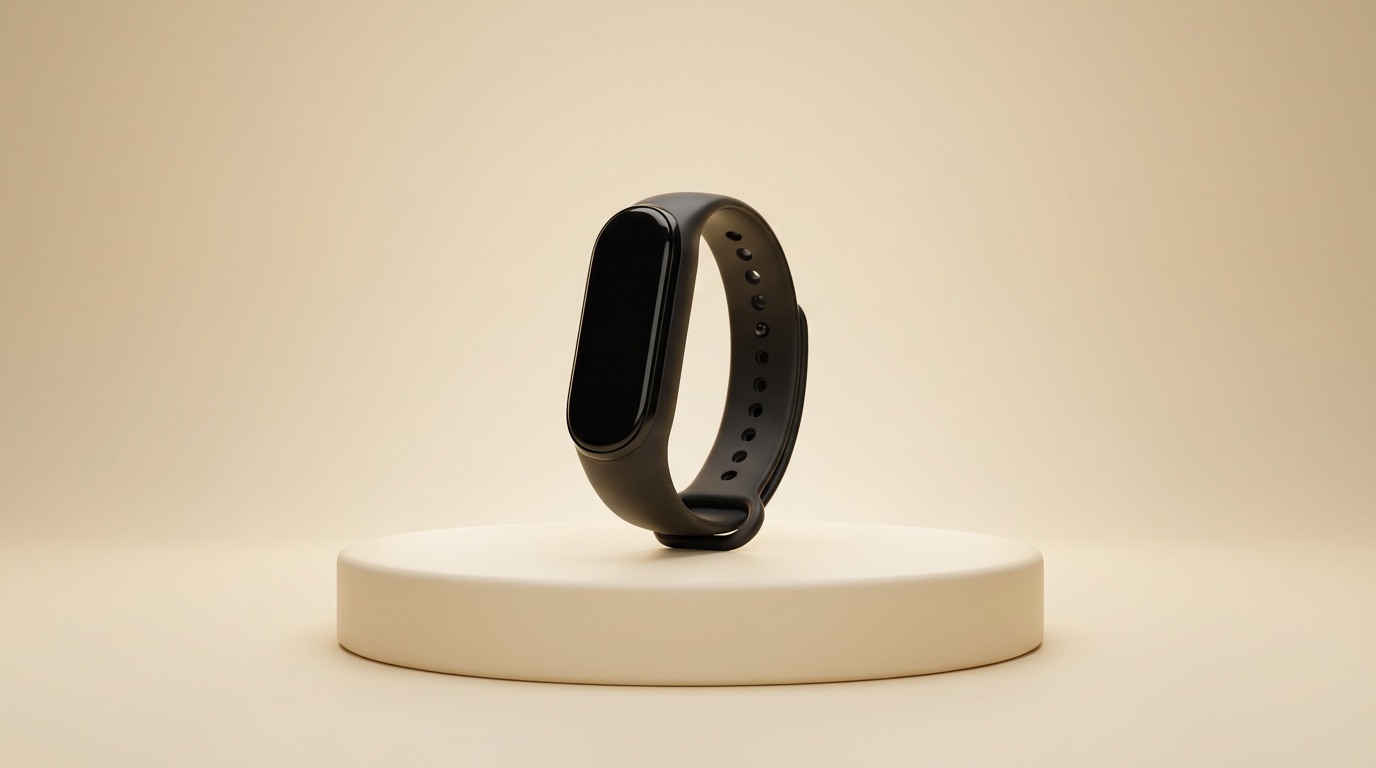
Left: a Nano Banana 2 draft. Right: the Nano Banana Pro image-to-image revision of that file.
Edit prompt
replace the cluttered desk with a warm cream studio gradient and a minimal pedestal, center the wearable device, add soft rim light and cleaner composition, preserve the device shape, make it look launch-ready, premium product marketing photo, no text, no watermarkSeven image models listed by AnyCap
These are public catalog entries reviewed September 23, 2026, not a ranked leaderboard or a record of seven generation trials. The task descriptions below are starting points for model selection. Verify the live catalog, mode schema, and current cost before using a model.
| Model | Provider | Task to consider | What to verify |
|---|---|---|---|
| GPT Image 2 | OpenAI | Prompt-led generation or editing | Supported mode and output format |
| Nano Banana Pro | Editing an existing visual | Source-image fields and revision limits | |
| Nano Banana 2 | Creating or revising variants | Mode and per-request cost | |
| Seedream 5 | ByteDance | Starting from a text brief | Prompt, output size, and mode |
| FLUX.1 Kontext Max | Black Forest Labs | Prompt-based revisions | Reference-image and edit parameters |
| Qwen Image | Alibaba | Text-to-image or image-to-image | Current schema and language handling |
| Seedream 4.5 | ByteDance | A second Seedream option | Current modes and tradeoffs with Seedream 5 |
Four checks before an agent sends a generation request
- Start from the input
- A text brief, an existing image, and a request with multiple references need different fields. Filter the catalog by supported mode before comparing model names.
- Inspect the live schema
- The model page gives an orientation; the live schema is the source for current parameter names, required fields, and limits. An agent should validate its request against that contract.
- Plan the output path
- Decide where the generated file should be saved and how the next step will use it. A clear output path matters more to an autonomous workflow than a marketing score.
- Check cost before running
- Cost can vary with model and settings. Inspect current pricing and start with one small request before a batch or an edit loop.
Open a model page for its actual workflow
Each linked page explains how the model appears in AnyCap's public catalog. These notes describe possible tasks and checks; they do not claim a controlled head-to-head test.
GPT Image 2 →
An available OpenAI image-model path in the AnyCap catalog. Review the current text-to-image or image-to-image schema and choose the output path before a request.
OpenAI
Nano Banana Pro →
A model to inspect when a workflow starts from an existing image. Check source-image requirements, edit mode, and current cost before building a revision loop.
Google
Nano Banana 2 →
A second Google option for generation and editing tasks. Compare its current schema and cost with Nano Banana Pro for the same task.
Google
Seedream 5 →
An option when the agent begins with a text brief. Read supported sizes and mode parameters instead of assuming defaults from a different provider.
ByteDance
FLUX.1 Kontext Max →
A model page focused on generation and prompt-guided revisions. Check which reference fields the current image-to-image mode accepts.
Black Forest Labs
Qwen Image →
Another catalog option for text and image input modes. Inspect language handling, required fields, and output format in the live schema.
Alibaba
Seedream 4.5 →
A separate Seedream catalog entry to compare with Seedream 5. Check the two current schemas and costs before choosing by version number alone.
ByteDance
Make the decision with the task's actual inputs
Do you have only a text brief?
Filter for text-to-image, then compare supported size, output format, and cost. Seedream 5 and GPT Image 2 are two catalog entries to inspect.
Are you editing a source image?
Filter for image-to-image. Read the source-image field, size limits, and revision instructions for Nano Banana Pro or FLUX.1 Kontext Max.
Will an agent run several variants?
Validate one small request, save its output, and check per-request cost before expanding to a batch. Do not infer total cost from a model's name.
Do you need an external model?
Confirm it actually appears in the current AnyCap catalog. If it does not, treat its provider API as a separate integration decision.
One command surface for models that are actually listed
AnyCap gives agents a shared CLI for image generation and editing. The agent can discover current model IDs and inspect their supported modes before choosing a model. The provider still produces the image; AnyCap handles the agent-facing execution and saved result.
- List the current image catalog before choosing a model.
- Read the selected model's live schema for the mode you need before filling fields.
- Start with one request, review the output, then decide whether to iterate or switch models.
anycap image models
anycap image models seedream-5 schema --mode text-to-image
anycap image models nano-banana-pro schema --mode image-to-imageMove from selection to the exact model or capability path
See Seedream 5 in detail →
Inspect a text-led image workflow and current model details.
See Nano Banana Pro in detail →
Inspect a workflow that starts from an existing image.
Image generation capability →
See the supported modes and the CLI workflow shared across models.
Add image generation to Claude Code →
Follow a specific agent setup path before choosing a model.
Common model-selection questions
What is the best image generation API for an AI agent?
There is no universal winner. Start with the required input, output, and editing workflow. AnyCap currently lists GPT Image 2, Nano Banana Pro, Nano Banana 2, Seedream 5, FLUX.1 Kontext Max, Qwen Image, and Seedream 4.5 in its public image-model catalog. Check the live model schema before a production request.
Which AnyCap model should I start with for a new image?
Start with a model that supports text-to-image in the current catalog. Seedream 5 and GPT Image 2 are two available paths. Compare the supported parameters, expected output, and the cost shown at request time before choosing one.
Which model should I use to edit an existing image?
Choose an image-to-image mode and supply the required source image. Nano Banana Pro and FLUX.1 Kontext Max have dedicated model pages that explain their editing workflows. Inspect the current CLI schema for required fields and limits.
Does AnyCap include every image model mentioned on the web?
No. This comparison covers models listed in AnyCap's public catalog at the review date. A model offered by another provider should not be treated as available through AnyCap unless it appears in the current catalog and its mode schema can be inspected.
Is this a quality or price benchmark?
No. The table compares workflow fit and public catalog availability. It does not report a controlled visual-quality ranking, generated samples for every model, or a fixed price. Check the live model schema and current pricing before use.