Learn
Last updated April 10, 2026
How to make background white
for product photos
If the destination is marketplace, catalog, or another compliance-style image slot, the question is usually not whether the photo can be made prettier. It is whether the product can be preserved while the surrounding lifestyle clutter is replaced by a neutral white setup. That is where AnyCap image generation gives the agent a cleaner product-photo workflow.
Answer-first summary
A useful white-background workflow keeps the original product and simplifies only the environment around it. AnyCap helps the agent edit from the source photo, inspect the result, and keep the output aligned with channels that expect a neutral product image instead of an editorial scene.
Generated proof
One source product photo, one white-background listing version
This page uses a real before-and-after proof pair. The left frame is the cluttered desk photo. The right frame is the AnyCap revision that keeps the same shoe but converts the environment into a white-background listing image.
Source image

White-background result
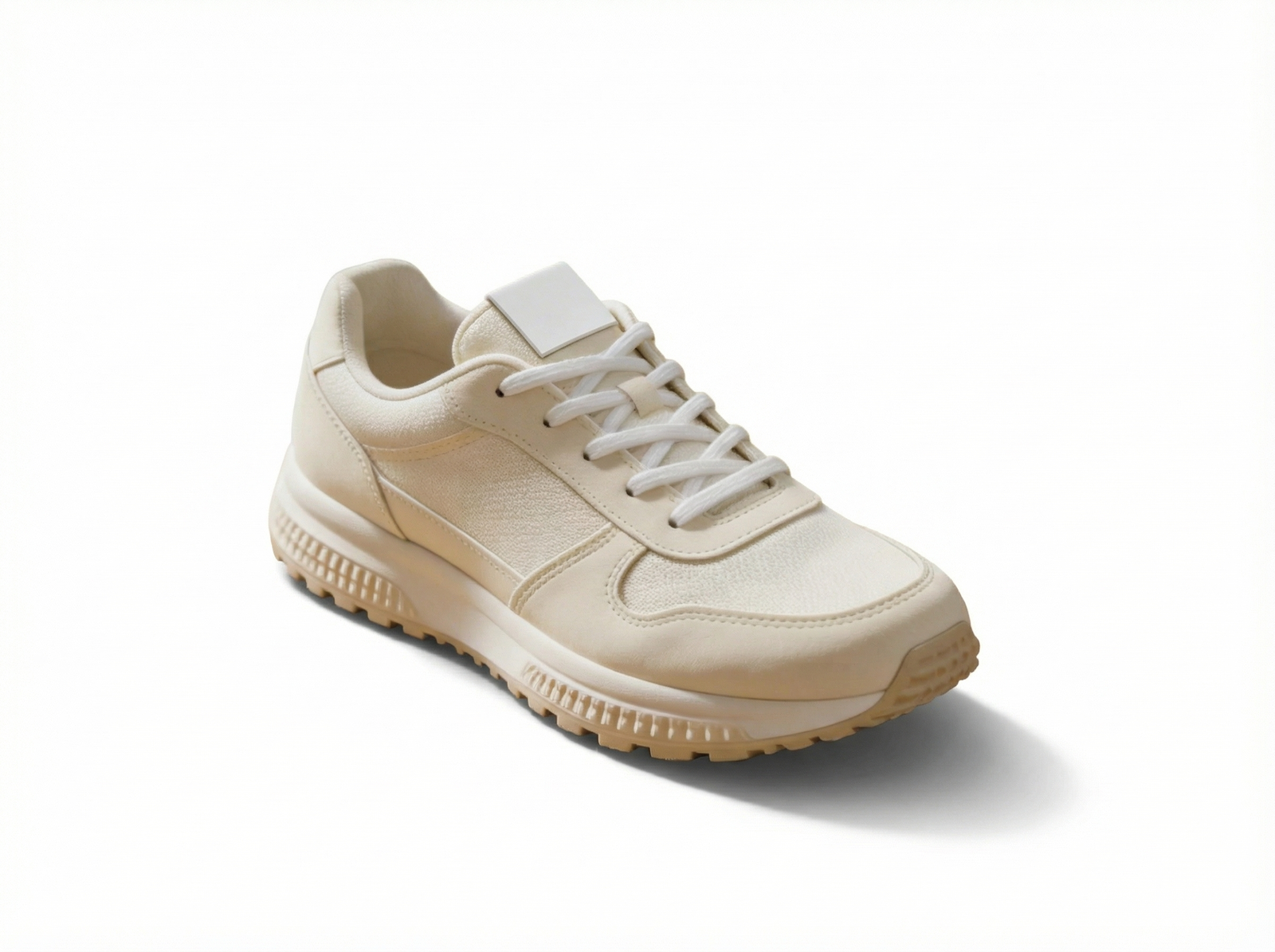
Edit prompt used with AnyCap
preserve the same off-white running shoe, replace the desk, notebook, mug, plant, and window with a seamless pure white studio background, centered ecommerce product photo, soft grounded shadow, clean edge separation, realistic materials, no text, no watermark
Why this proof matters
- It shows why white-background cleanup is a narrower job than generic background replacement.
- The proof pair makes the marketplace-style use case concrete instead of leaving the page at the level of abstract advice.
- It demonstrates that the agent can move from a lived-in source photo to a cleaner catalog-style result without swapping the product identity.
The left image is the source product photo. The right image is the AnyCap white-background revision generated from that same source asset for this page.
Quick answer
White background is a channel decision
A white-background product image is usually not about making the photo more dramatic. It is about meeting the expectations of a channel that wants neutral, repeatable, easy-to-compare product visuals. That is why this workflow is narrower than a general background changer.
- White-background product photos are usually about channel fit, not aesthetics alone.
- The strong workflow is to preserve the original product while removing the desk, room, and lifestyle clutter around it.
- The same source image can still branch into white-background, transparent, or styled-scene versions depending on the destination.
Marketplace slots
Best when the destination wants simple, consistent product images that minimize styling differences across a catalog.
Internal product docs
Best when the image should stay neutral and easy to reuse in docs, specs, or other operational material.
Comparison pages
Best when the image needs to sit beside several other products without one of them carrying a much more styled background treatment.
Workflow
Five steps from lifestyle source to listing image
Step 1
Start with the real product image
Use the product photo that already matters to your listing, doc, or catalog flow. This is not the best place to regenerate the subject from scratch.
Step 2
Ask for white background specifically
Say `white studio background` or `marketplace-ready product photo` directly. White should be an explicit requirement, not a vague cleanup guess.
Step 3
Keep the product identity stable
Repeat the subject-preservation constraint so the model treats the item as fixed while simplifying only the surroundings around it.
Step 4
Check edges and shadow behavior
The result should feel clean without looking cut out badly. Keep an eye on laces, soles, packaging edges, and whether the grounded shadow still feels plausible.
Step 5
Export the version the channel expects
From the same source, you can still branch into transparent or styled versions later, but the white-background listing image should stay the most neutral output in the set.
Comparison
Why this is different from generic cleanup
Destination fit
Shallow default
The product looks cleaner, but the page does not say why white matters.
AnyCap workflow
The page explains that white is usually the right lane for catalog, marketplace, and compliance-style image slots.
What changes
Shallow default
The tool edits the image without a strong constraint on preserving the product.
AnyCap workflow
The subject stays anchored while the cluttered environment is replaced by a neutral white setup.
Asset reuse
Shallow default
The edited photo becomes a one-off export.
AnyCap workflow
The same source can branch into white, transparent, or styled-scene variants depending on the next channel.
QA standard
Shallow default
The background is white, so the job feels done.
AnyCap workflow
The agent also checks subject consistency, edge quality, and whether the result still looks product-grade.
Model choice
Pick the model based on where the cleanup starts
Best first choice for listing cleanup
Nano Banana Pro
Use this when the source photo already exists and the main job is to preserve the product while converting the scene into a neutral white setup.
Best for faster listing variants
Nano Banana 2
Use this when you want a quicker loop across several white-background directions or slightly different product framings.
Best when the source photo is still missing
Seedream 5
Use this when you need the original product image first and only then want to branch into white-background cleanup.
First-hand validation
What we checked on the live workflow
Capability surface confirmed
During page production on April 10, 2026, a live AnyCap status check confirmed image generation, image editing, and image reading were available in the current environment.
Schema confirmed
Nano Banana Pro's live image-to-image schema was checked and the current source-asset parameter is `images`.
Proof pair generated
The before-and-after images on this page were generated through AnyCap from the same source product photo rather than assembled from unrelated examples.
Result inspected
Image reading was used to confirm the white-background result preserved the same shoe and did not introduce visible text or watermark artifacts.
CLI examples
Example commands for white-background product cleanup
Convert a source photo into a white-background listing image
anycap image generate \
  --model nano-banana-pro \
  --mode image-to-image \
  --prompt "preserve the same product, replace the room with a pure white studio background, centered ecommerce product photo, soft grounded shadow, no text, no watermark" \
  --param images=./source-product.png \
  --param aspect_ratio=4:3 \
  --param resolution=2k \
  -o white-background-product.png
Branch from the same source into a transparent version
anycap image generate \
  --model nano-banana-pro \
  --mode image-to-image \
  --prompt "remove the background and keep only the same product as a clean cutout preview, preserve edges and materials, no text, no watermark" \
  --param images=./source-product.png \
  --param aspect_ratio=4:3 \
  --param resolution=2k \
  -o transparent-product-cutout.png
QA the white-background result
anycap actions image-read \
  --file ./white-background-product.png \
  --instruction "Describe the image, confirm whether the same product is preserved, and mention any visible text, watermark, or edge problems."
FAQ
Questions that usually come next
When is a white background better than transparency?
Use white when the destination is catalog, marketplace, or another channel that expects a clean product image with no styling decisions left open. Use transparency when the asset still needs to sit on several different surfaces later.
When is a white background better than a styled studio scene?
Use white when consistency, compliance, or visual neutrality matters more than mood. Use a styled scene when the page needs more editorial framing or a stronger product-story signal.
Which AnyCap model should I use first for white-background product edits?
Use Nano Banana Pro first when the source product photo already exists and the job is to preserve the original item while simplifying the environment. Use Nano Banana 2 when you want faster iteration or several listing variants. Use Seedream 5 when you still need the original product photo before cleanup starts.
Can AnyCap help inspect whether the result still looks marketplace-ready?
Yes. After generation, you can use AnyCap image reading to check whether the same product is preserved, whether the edges still look clean, and whether any visible text or watermark was introduced.
Next move
Move into the workflow the channel actually needs
How to Change a Photo Background
Use this broader workflow when the target is a studio scene or a contextual replacement instead of pure white.
How to Make an Image Transparent
Use this when the destination wants the product isolated for reuse across several different layouts later.
Nano Banana Pro
Go deeper on the model that currently fits the strongest source-preserving revision loop for product cleanup.
Install AnyCap
Move here when you want the shortest path from this page to a working CLI setup.